OS Type, CPU Model and system options move to the first tab of the VM form
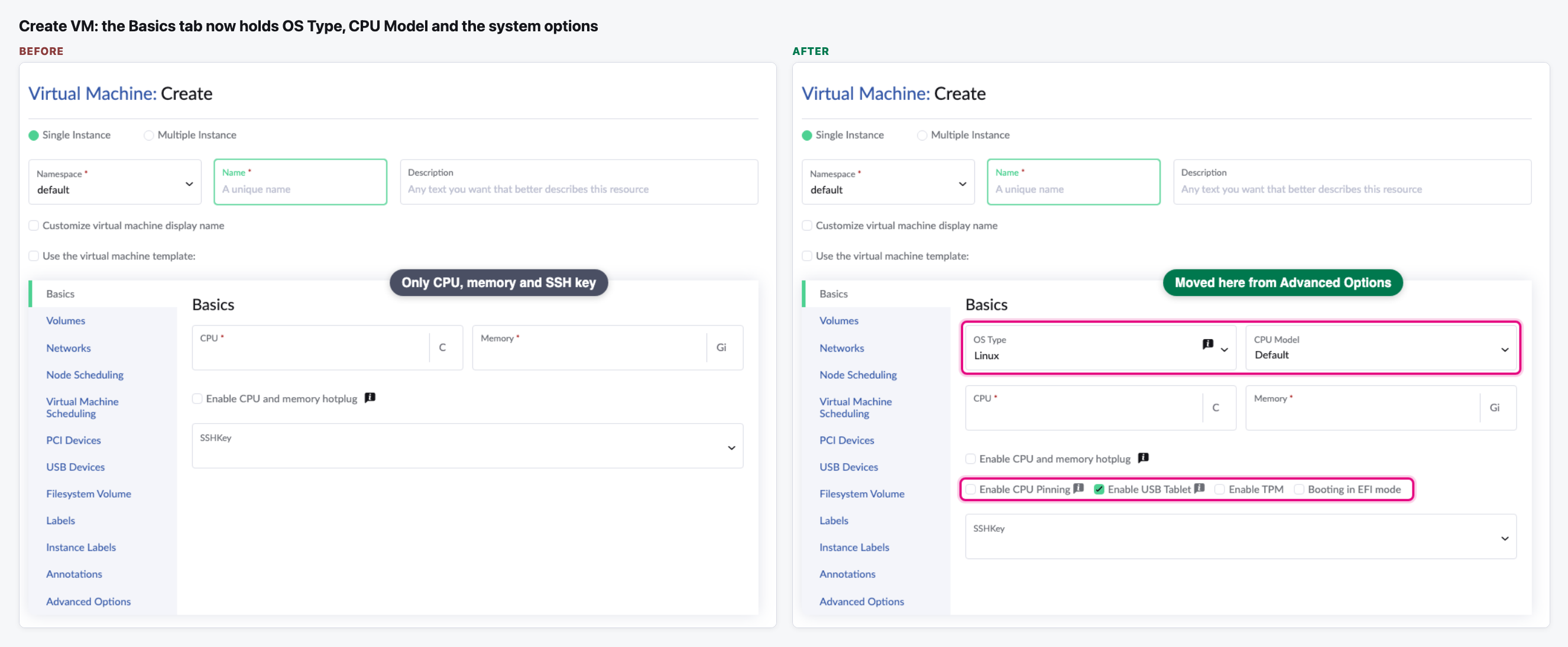
When creating a VM, OS Type, CPU Model and switches like TPM and EFI boot were hidden at the bottom of the last tab, Advanced Options. They now sit on Basics, next to CPU and memory, on both the VM form and the template form.
- The core machine settings (OS Type, CPU Model, CPU pinning, USB tablet, TPM, EFI boot, Secure Boot) are on the Basics tab, where users set CPU and memory.
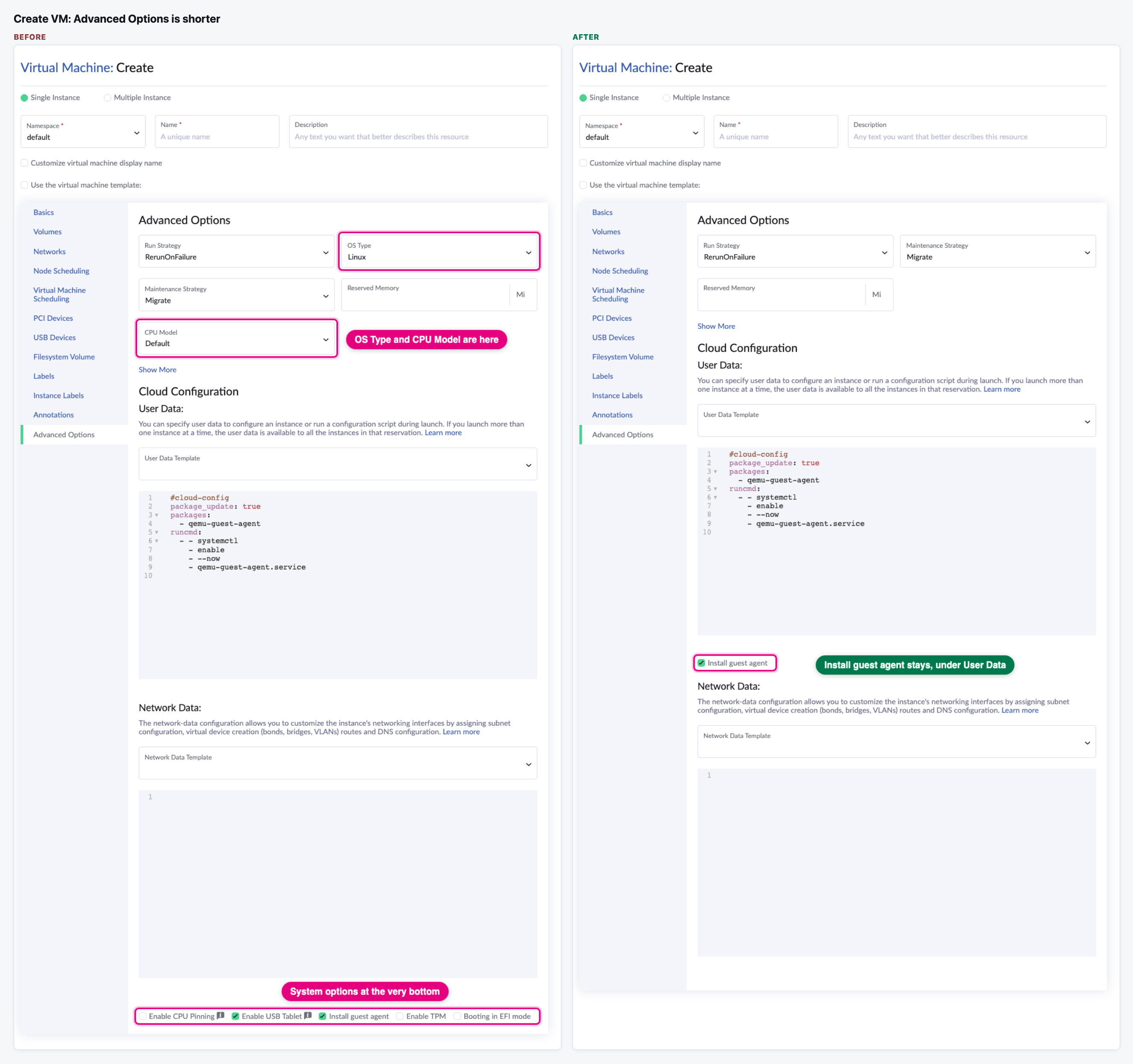
- Advanced Options is shorter. It keeps run and maintenance strategy, reserved memory and the cloud config. "Install guest agent" stays there, right under the User Data it changes.
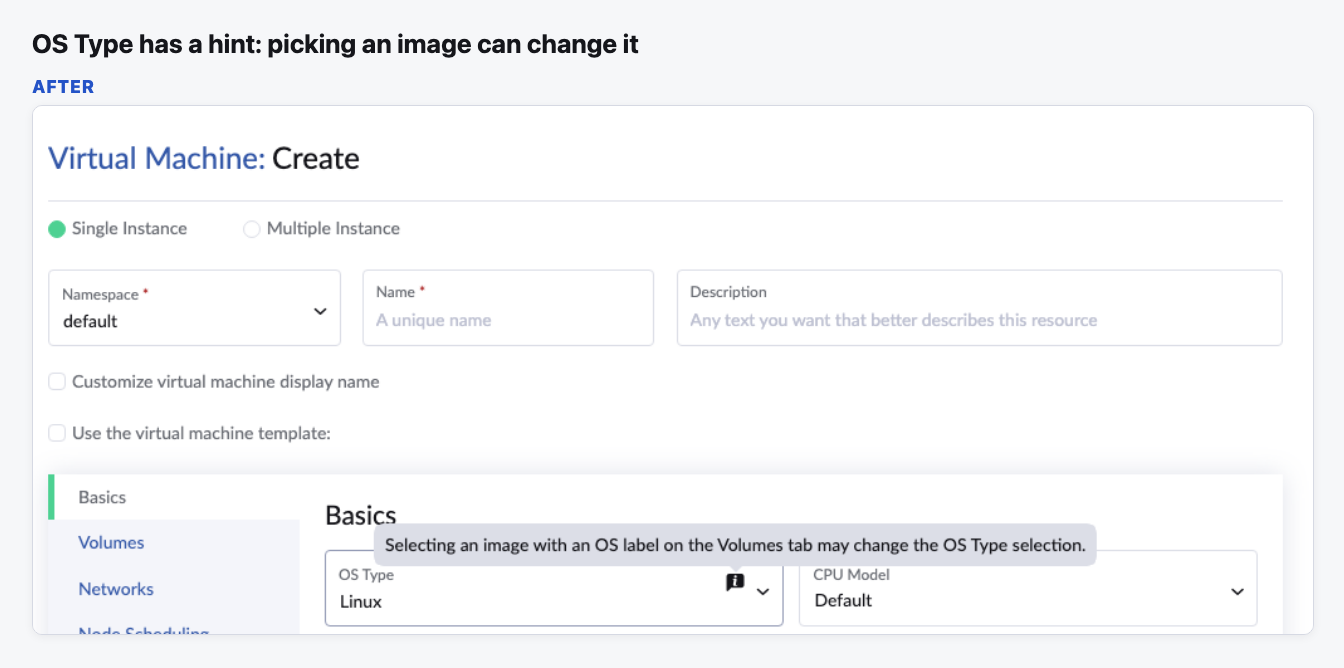
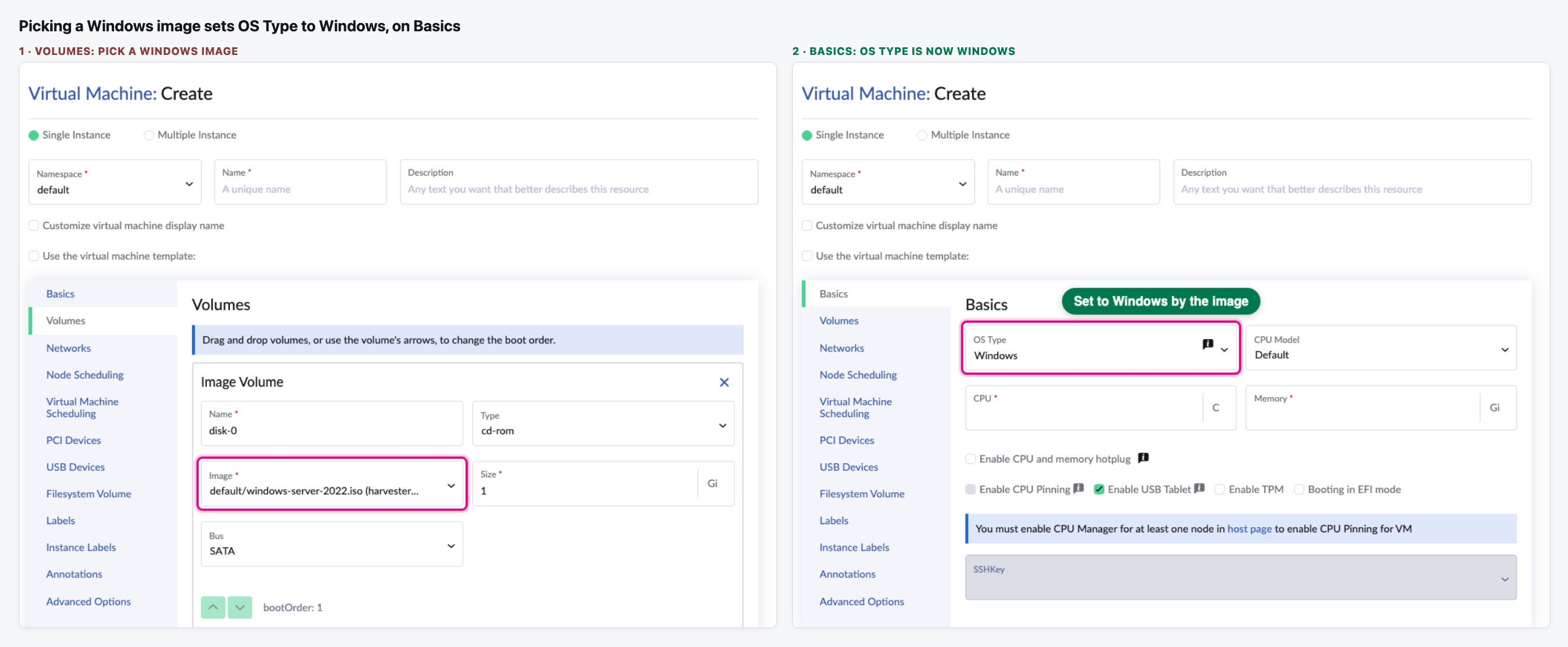
- OS Type has a hint: picking an image that carries an OS label (for example Windows) on the Volumes tab can change it.
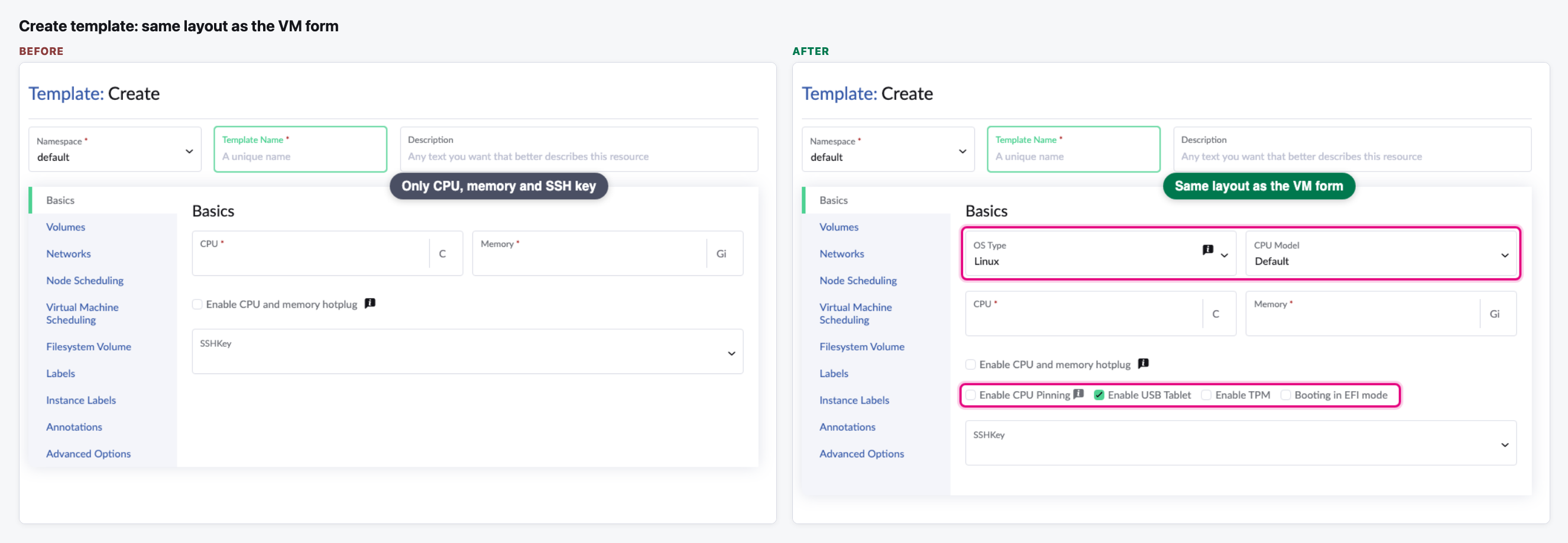
- The template form uses the same layout, so creating a VM and creating a template look alike.
- Nothing else changes: the same settings are saved as before.
The flow
Create VM: the Basics tab
Before, Basics only asked for CPU, memory and an SSH key. Now it also has OS Type, CPU Model and the system options.
Advanced Options is shorter
OS Type and CPU Model leave the top of the tab, and the system options leave the very bottom, below two long editors.
OS Type explains that an image can change it
OS Type now comes before the Volumes tab, so a later image pick could silently change it. A hint says so.
Picking a Windows image sets OS Type to Windows
We pick a Windows image on Volumes, go back to Basics, and OS Type now says Windows.
The template form matches
Creating a VM template now shows the same Basics layout as creating a VM.
The CPU Manager note is blue, not yellow, when creating
If no host has CPU Manager on, the form explains why CPU pinning is greyed out. On create this is now an information note.

Video (optional)
Notes
- Our review raised three points: OS Type could be changed silently by an image pick, the CPU Manager note was a warning, and the template form kept the old layout. All three were addressed before the merge (steps 3, 6 and 5).
- OS Type can still be changed by the image without asking. The hint explains it. The author offered a follow-up that only auto-sets OS Type while the user has not touched it.
- Our test Harvester has no Windows image and all hosts have CPU Manager on. For steps 4 and 6 we labelled one image as "windows-server-2022.iso" (Windows) and hid CPU Manager in the browser only.
- How we tested: the UI just before the change and the UI at the merge, both built and served from this laptop against our test Harvester. Nothing was created on the cluster.